FTS Market
Microstructure Treatments
Including
Quote and
Order Driven Markets
FTS supports the
following market microstructures:
·
The
continuous double auction (default setting for most cases)
o
All traders
can make market (submit bids and asks) and take market (hit bids or asks
submitted by others)
o
Every
trader sees all the bids and asks posted
§ Though the moderator can hide this or make
this visible for everyone from the Microstructure menu item; if it is hidden,
then only the best bid-ask is shown
·
A call
market
o
This is
initiated from the Microstructure menu item
o
In this
market, everyone can submit bids and asks.
At the end of the period, if there are crossing bids and asks, these are crossed at a single price that maximizes the
volume of trade. If there is an interval
of prices that maximize the trading volume, the average of that interval is
chosen (so the surplus is split between the buyers and sellers)
·
A
pre-opening call market
o
This is
the same as the call market, except that at the end of the call market trading,
the uncrossed bids and asks remain in the system for the start of the trading
in a double auction
·
A pure
order driven market
o
In this
market, every trader can submit an offer or buy and/or an offer to sell. These are shown in a limit order book visible
to everyone; the highest buy offer and the lowest sell offer are also shown to
everyone.
§ The moderator can hide these, as above,
though the best offers are still shown.
o
Trade
takes place when a bid comes in that exceeds an existing ask (at the existing
ask) or when an ask comes in that is less than an
existing bid (at the existing bid).
o
The has
to be set in the case spreadsheet
o
·
A pure
quote driven market
o
In this
market, there is a distinction between market makers and markets takers.
§ Only market makers can submit quotes
(bids/asks)
§ Market takers can submit buy and sell orders
§ The buy and sell orders are visible to the
market makers only
§ The best quotes are visible to everyone
§ Market makers can fill orders by double
clicking on the order in the book
·
But
these have to satisfy price and time priority
§ The market makers/takers have to be specified
in the case spreadsheet
·
Other
microstructure variations
o
Privately
negotiated trades
§ In any of the treatments above, you can also
allow privately negotiated trades. In
this setting, trader 1 privately sends a message to trader 2 suggesting a
trade. If trader 2 accepts, the trade is
executed and reported to all traders.
§ This has to be set in the case spreadsheet
o
Block
trades
§ A trader can be given a short or long
position in a security, and be required to trade out of that position before
they can trade it for their own account.
§ If they do not trade out of that position,
they do not earn any payoff in that security
§ This has to be set in the case spreadsheet
Details and
Examples
The following
examples use Case RE1_1 which is the 1-stock version of RE1. All the variations below are in the case
spreadsheet titled Market Efficiency Cases (ftsStdRE.xls).
The main
microstructure treatments are implemented in the case spreadsheet and are in
the “trader type” data in the case spreadsheet.
This data starts in Column A Row 20. It is shown for the different microstructure
treatments below.
RE1_1: Double Auction
|
Trader
Data |
Type 1 |
Type 2 |
|
Cash |
2000 |
2000 |
|
Endow 1 |
100 |
100 |
|
Rights 1 |
0 |
0 |
This case has two
trader types. The first type starts with
2000 in cash and an initial position (endowment) of 100 of the first security. The row titled “Right 1” controls the trading
rights of trader type 1. It is set to 0,
which means the trader can submit bids and asks (“make market”), and accept bids
and asks made by others (“take market”).
The possible values are:
0 = No restrictions on market making or market
taking
1 = Market making rights only (i.e., can only bid
to buy or ask to sell),
2 = Market taking rights only (can only buy from
ask or sell to bid)
3 = No trading rights in the security (permits
creating a non tradable position).
4 = Bid rights only
5 = Ask rights only
6 = Buy rights only
7 = Sell rights only
8 = Buying rights only (Bid + Buy)
9 = Selling rights only (Ask + Sell)
So even within the
double auction, you can restrict market making and market taking activity by
changing these numbers. The maximum
number of traders and the number of trader types determines exactly how many
traders of each type there actually are within the system. For example, if the maximum number of traders
is 60 and the number of trader types is 2, then the system will create 30
type-1 traders and 30 type-2 traders.
The first student to log in will be type 1; the second will be type 2,
the third type 1, and so on. If the maximum number of traders is 60 and you
have 7 trader types, the system will create 8 types of each trader and 4
additional type 1 traders (7*8+4=60).
The first, 8th, 15th,…
will be type 1. The maximum number of
traders is specified in cell B5 of the spreadsheet and you also have to specify
the number of trader types below this in cell B6:
|
Maximum
Number of Traders |
60 |
|
Number of
Trader Types |
2 |
Note that in student
markets, if you have too few market makers and they don’t submit bids and asks,
there will be no liquidity. For this reason,
the default setting in most FTS cases is to set the trading rights of every
trader type at 0, which allows everyone to bid and ask.
In a double auction,
trading takes place as follows:

·
A market
maker submits a bid from the trading area at the top right by typing in a price
and a quantity, and clicking “Submit Bid”.
This is shown to everyone. If
market taker hits the bid (clicks “Sell to Bid”), the market maker buys and the
market taker sells.
·
A market
maker submits an ask by typing in a price and quantity and clicking “Submit
Ask.” This is shown to everyone. If market taker hits the
ask (clicks “Buy at Ask”), the market maker sells and the market taker
buys.
·
If a bid
exceeds the ask, the two are crossed by the system at
the price that existed first (so if a bid was submitted prior to the ask, the
cross takes place at the bid price).
·
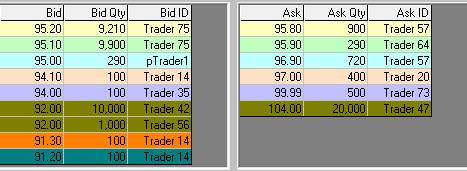
The
outstanding bids and asks are shown to everyone, e.g.
·
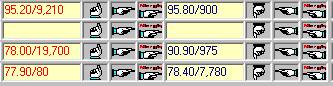
Bids can
be raised, and asks lowered, by typing in the entries and submitting either the
bid or the ask, or by using the hand signals. Similarly, you can Sell to Bid or Buy at Ask
with the hand signals:
·
The hand
pointing up raises the bid, the first hand pointing right sells, the hand
pointing down lowers the ask, and the first hand pointing left buys at the ask
(the second hand (with the little red writing on it) buys or sells on margin if
the case allows it).
RE1_1_B: Block Trades
The trader type part
of the spreadsheet is:
|
Trader
Data |
Type 1 |
Type 2 |
Type 3 |
|
Cash |
2000 |
2000 |
1000 |
|
Endow 1 |
100 |
100 |
200 |
|
Rights 1 |
0 |
0 |
10 |
You can see that the
third trader type has rights for the first security set at 10. This means that they first need to sell their
initial endowment/position of 200 units of the first security before they can
do anything else. So this trader will
not be able to submit a bid or hit an ask until the
200 units have been sold.
The maximum number
of traders and number of trader types is specified in cells B5 and B6:
|
Maximum
Number of Traders |
60 |
|
Number of
Trader Types |
3 |
This means that
there will be 20 traders of each type.
If a type 3 trader
tries to submit a bid or hit an ask, the trader will
receive the following message:
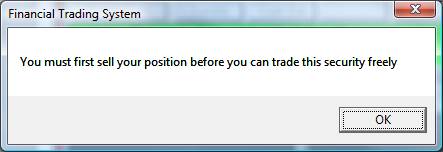
After the 200 units
have been sold, they are free to trade normaly.
RE1_1_O: Order Driven Market
Case RE1_1_O has the
following data:
|
Trader
Data |
Type 1 |
Type 2 |
Type 3 |
|
Cash |
2000 |
2000 |
2000 |
|
Endow 1 |
100 |
100 |
100 |
|
Trading
Rights |
1 |
1 |
1 |
The trading rights
mean that everyone can only submit bids and asks. The trading area looks like this:
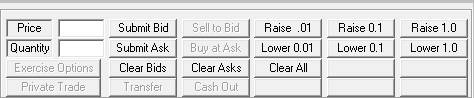
You can see that the
“Sell to Bid” and “Buy at Ask” buttons are disabled. In this market, trade takes place when a bid crosses
with an ask. In
essence, what happens is that a bid is interpreted as a buy order and an ask is interpreted as a sell order. All these orders are displayed in the book,
and trade takes place when there is a cross.
RE1_1_Q: Quote Driven Market
This is the most
complex but also most realistic setting.
There are specific market makers and market takers, but the market maker
has additional ability to fill orders.
The case information looks as follows:
|
Maximum
Number of Traders |
60 |
|
|
|
Number of
Trader Types |
11 |
|
|
|
Trader
Data |
Type MM |
Type 1 |
Type 2 |
|
Cash |
3000 |
2000 |
2000 |
|
Endow 1 |
0 |
100 |
100 |
|
Trading
Rights |
101 |
102 |
102 |
Types 3-10 are
identical to types 1 and 2. With 60 traders
in all, this means there are 6 traders of Type MM with trading rights set at
101 and 54 traders with trading rights set at 102. “MM” obviously stands for “market maker.”
The market makers
are the only ones allowed to post quotes (bids and asks). The market takers can see the best bid or ask
submitted by the market makers and they can see their own orders; they can also
submit buy or sell orders. The trading
area for market takers then looks as follows:

For the market maker,
the trade area lets them enter bids and asks normally:

Everyone sees the
best bid-ask posted by the market makers.
The market makers also see the buy and sell orders. If a market maker wants to fill an order,
they simply double click it to fill it:
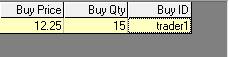
Note: in the book
menu, a trader has the option of seeing the entire book or just their own book
(i.e. the bids and asks they have submitted).
When viewing their own book, double clicking on an entry clears that bid
or ask. A
market maker sees the buy and sells orders, and fills an order by double
clicking on it.
Trading targets: Another variation is to specify a trading
target. Here, the trading type is
specified at e.g. 101/75/20. This is interpreted as: this is type 101 (as above), and they have to
end the trading trial with 75 units of the security. If they end up with N units, they are charged
a penalty equal to 20*ABS(75-N).
Pure market makers: You may want to run a treatment where a
market maker has the incentive to provide liquidity. A type 201 is identical to type 101 except
that they do not receive any payoffs from any security. Therefore, their final cash comes entirely
from trading. So if they do not provide
any liquidity, there is no profit. Note
that simply positing bids and asks in not enough; to make money, they need to
post bids and asks at which otgher traders are
willing to trade.
Other Variations
You can also set
other trading limits by editing the case spreadsheet before running the
case. The case template has the
following fields. The area in light
green applies to everything; the area in light yellow is security specific.
|
Number of
Securities |
1 |
Name |
ABC |
|
Maximum
Number of Trials |
8 |
Security
Type |
Stock |
|
Number of
Periods per Trial |
2 |
Price
Quotes |
Endogenous |
|
Period
Length (seconds) |
300 |
Start
Life |
1 |
|
Maximum
Number of Traders |
60 |
End Life |
2 |
|
Number of
Trader Types |
2 |
Short
selling |
Yes |
|
Market
Depth |
10 |
Quote to
Price Formula |
Quote |
|
Depth
Displayed |
5 |
Information |
Yes |
|
Borrowing
Allowed |
Yes/No |
|
|
|
Last Row
with Exogenous Prices |
|
Magintrade |
No |
|
Number of
Information Types |
9 |
|
|
|
Last Row
with Information |
36 |
|
|
|
|
|
Private
Trade |
No |
|
|
|
Max Qty
(type specific) |
5000/5000 |
|
|
|
|
|
|
|
|
Price
Bounds |
0,50 |
In the light green part,
borrowing is type specific. So in the
example shown here, trader type 1 is allowed to borrow, trader type 2 is not.
In the light yellow
part, you can set private trades to yes to allow students to negotiate prices
directly without it being shown to anyone else; if they do trade privately, the
trade is reported to everyone.
The Max Qty set the
maximum quantity per trade. This is also
type-specific.
Finally, you can set
price bounds; as shown, the minimum quote is zero and the maximum quote is 50.
Private Trades
If you permit
private trades, the “Private Trade” button in the trade area becomes enabled:
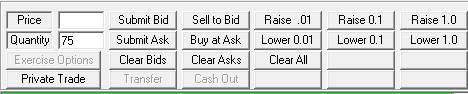
Clicking it brings
up the following window, where we have entered some data:
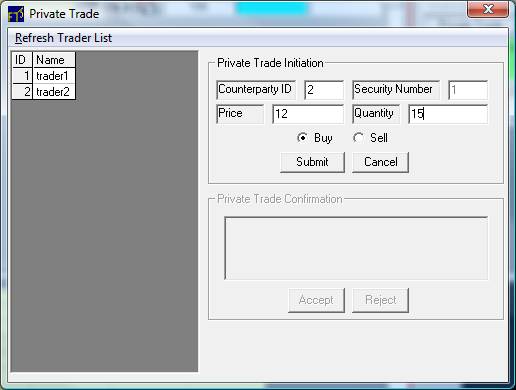
On the left, you see
the list of traders and their ID’s. We
are asking trader2 if they would be willing to buy 15 units of security 1 at
the price of 12 each. Once the Submit
button is clicked, trader2 sees the following:
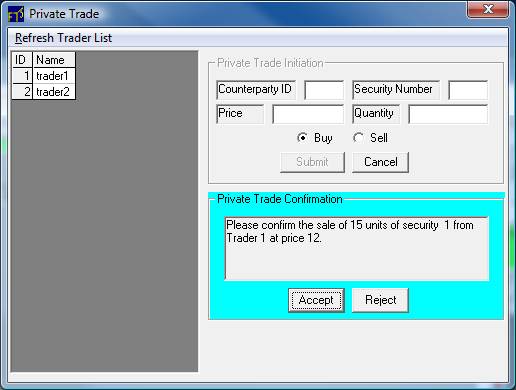
They can now accept
or reject the trade. If accepted, it is
shown to everyone in the Last column of every trader:

The trader who
initiated the trade is told of the acceptance or rejection of the offer.
Call Markets
You can convert a
double auction to a call market prior to
the start of a trading period from the Microstructure menu item of the FTS
Market:
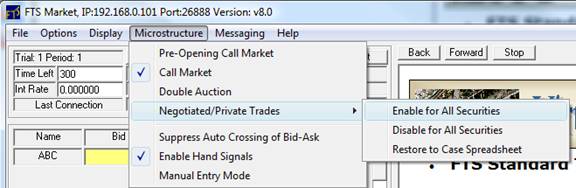
As you can see, this
menu item also lets you control other settings:
·
If you
suppress auto crossing of bids and asks, then if a student enters a bid greater
than the ask, it will not be crossed, instead, both
will be shown until someone acts on it.
o
Further
note: if the same student enters a bid and ask, and the bid exceeds the ask, it will not be crossed, irrespective of the menu
setting.
·
You can
enable or disable hand signals. This is
useful if you want to slow down the trading
·
If you
select Manual Entry mode, then every entry has to be typed in afresh. For example, suppose a student enters a bid
of 12 for 50 units. This stays in the
entry area, and so to re-enter the bid, the numbers do not have to be typed
again, the student can simply keep clicking the “Submit Bid” button. In manual entry mode, the bid would have to
be retyped before any button could be clicked.
·
You can
also enable or disable privately negotiated trades; this can only be done prior
to the start of the period.
Returning to the
call market, if you select it, you will be asked to confirm that you want to
run a call market:
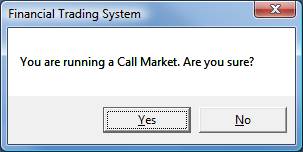
After confirmation, the trader displays change
to the following:

So the Bid and Ask columns
have been replaced by “Price” and “Volume” columns.
Trading proceeds as
follows. Students
enter bids and asks. These are
displayed in the book though you can suppress the display from the Display menu
of the FTS Market.
If there is a cross,
then the trade takes place, and the price and volume traded are reported to
everyone. If you hide the display of the
book, no one sees the process of bidding and asking, so information is only
transmitted when a trade takes place.
In a pre-opening call market, the same
process takes place, except that at the end of the call market, the outstanding
bids and asks are used to start off the double auction; you have to manually
select the double auction; this way, you can run multiple rounds of the
pre-opening call market prior to the double auction.