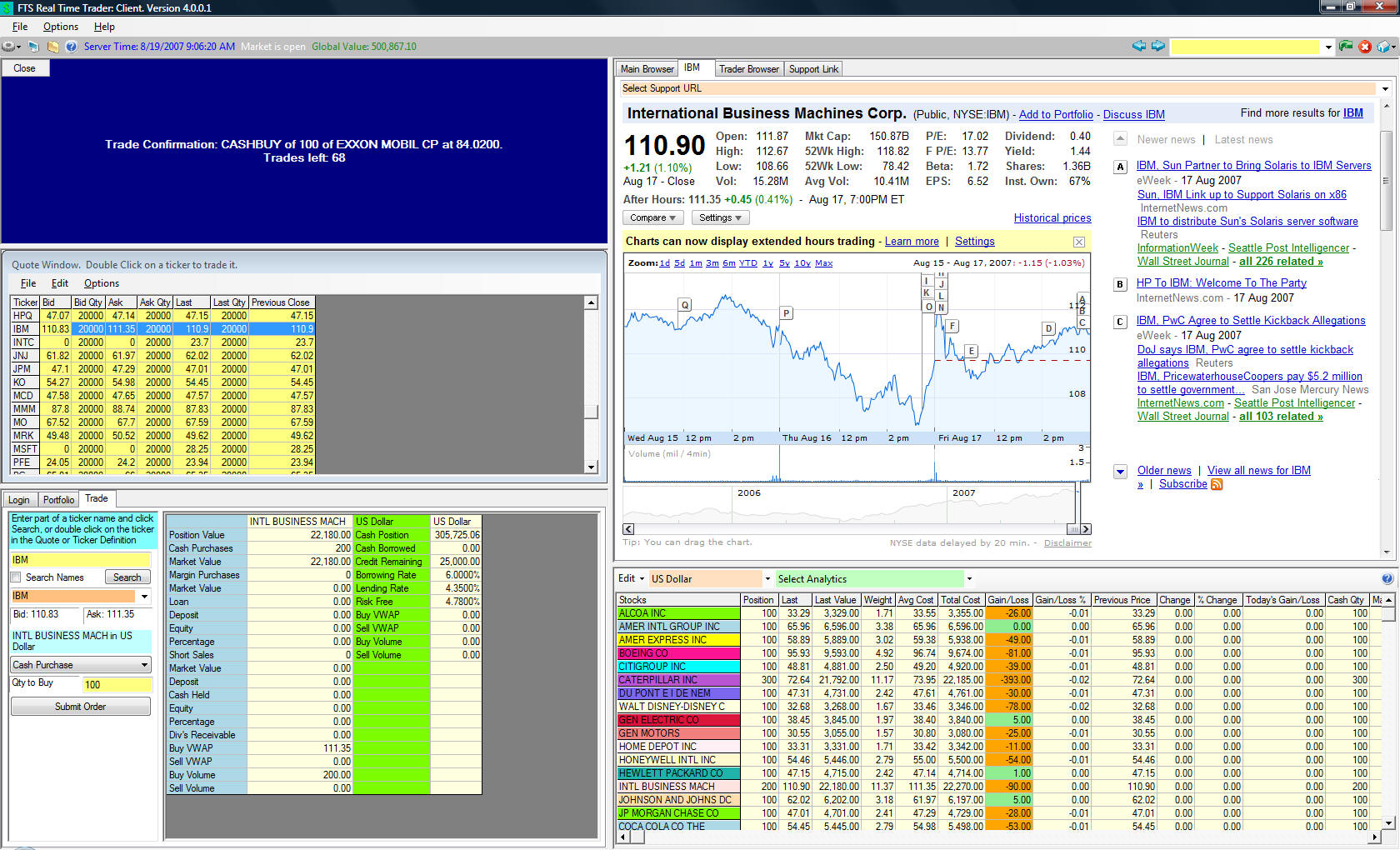
FTS Real Time Position Manager  Demonstration

Welcome to the demonstration page which lets you see how you can introduce FTS Real Time Client into your classroom.  Available demonstrations are as follows:

  1. Economy wide case covering fixed income, currencies and stock index markets.
  2. Firm specific stock case covering the Dow Jones Industrial Index stocks
  3. International case covering Covered Interest Rate Parity and Carry Trading
  4. Options case covering Exchange traded index funds and index options

In each case the real world news headlines, real time prices, powerful analytical support and a comprehensive back office accounting for trading (margins, short sales, mark-to-market) are available to the user at a click of the mouse. 

Take a quick video tour of the FTS Real Time Client to see this state of art real time position management system.  Click on video tour now.

Running the Demonstration

Step 1

Step 2

  • Launch the FTS Real Time Client from either it's icon or selecting Run, Programs, OS Financial Trading System, FTS Real Time Client, Launch FTS Real Time Client and from the opening screen Click on RTFTS Demo

    Note:  If you click on the demo button you will be randomly assigned to one of the above demos.  You can return to the Login tab in FTS Real Time Client, click on Logout and then click on the RTFTS Demo button to change demos.  There are only a finite number of slots so if some other user is assigned your demo login/password this will disconnect your demo session until you either re-click on the Demo button or login in manually.

Troubleshooting

  • Vista quirk:  When you first install under Vista and then launch the FTS Real Time Client it may tell you it has stopped working.  Close it off and then re-launch the FTS Real Time Client from the icon or from the Start Menu (OS Financial Trading System).  This will then launch correctly.
  • Vista uninstall issue:  If you try to uninstall the FTS Real Time Client and you receive a message stating:  "This action is only valid for products that are currently installed." then you should uninstall using the Windows Control Panel.  Click on Start, select Control Panel, and in Vista select "Programs and Features" then select FTS Real Time Client, and finally click on Uninstall.  This will uninstall the Client if you are required to update your version number.
  • If problems persist it is always good advice to physically shutdown your PC and restart before attempting any troubleshooting.
  • If you get a Visual C++ runtime error then it is most likely that .NET is not installed on your machine correctly. So re-install .NET and then re-run Step 1 above.  You can install .NET onto your computer directly from the Microsoft website. To do so do the following:

    Click on: Install .NET 2.0 Now and then click on Download from the Microsoft page. You must have local administrator rights to your PC or laptop to complete this step.

Manual Login

  • You can choose a particular demo by logging in manually.  To do this on the login page enter the following:
  • Below the "xx" beside Trader and pwd is the same number from 26-50.  Number 26-31 log you into Demo 1 above, 32-37 to Demo 2, 38-43 to Demo 3 and 44-50 to Demo 4. 
    • For example, suppose you want to preview the options case then enter in case sensitive form:  Trader36, pwd36 respectively for Trader Name and password.
    • IP Address of Server:  74.208.11.13
    • Port Number: 23566
    • Trading Name:  Traderxx
    • Password:  pwdxx